Remove Background From Image Online: Free Guide
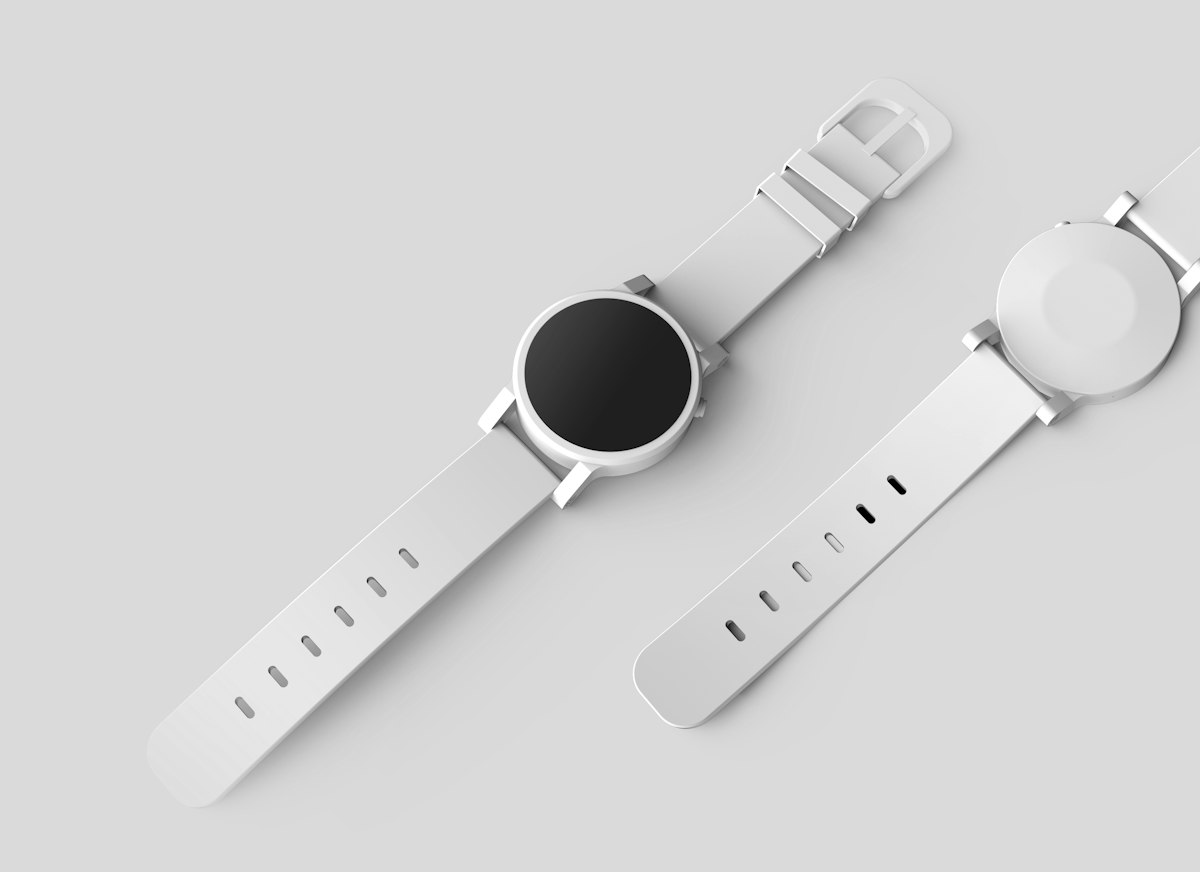
A transparent-background image is one of those small assets that makes everything look more polished — a product that sits cleanly on any page, a logo that drops onto a coloured header, a headshot that blends into a slide. This guide shows how to remove background from image online in three practical steps, explains what the tool works best on, and shows how to get a clean transparent PNG without uploading your photo anywhere.
What "removing the background" actually means
The end goal is a PNG with transparency: the subject stays, and everything behind it becomes see-through, so you can place the cut-out on any colour, photo, or document.
There are two broad approaches to getting there:
- Colour-based removal. The tool identifies the background colour and makes every matching pixel transparent. This is fast, predictable, and completely reliable on images where the background is a fairly solid, even shade — product shots on white, logos, graphics, and portraits taken against a plain wall.
- AI subject detection. A model tries to guess where the subject ends and the background begins, regardless of colour. This handles busy backgrounds but is heavier, less predictable, and often requires downloading large models.
Our Background Remover uses the colour-based approach, which means it's fast, private, and excellent for the most common real-world cases — product photos and simple portraits — without any of the unpredictability of a black-box model.
How to remove background from image online in 3 steps
- Open the Background Remover.
- Drop in your image. The tool automatically samples the corners to detect the background colour.
- If it didn't guess quite right, click Pick colour and click the exact background shade you want gone.
- Adjust Tolerance — how similar a pixel must be to count as background — until the background disappears without eating into your subject.
- Nudge Edge softness to feather the cut-out edge for a cleaner blend.
- Download your transparent PNG.
It all runs on your device against a checkerboard preview (the standard way to show transparency), so you can see exactly what you'll get. Nothing is uploaded, which makes it safe for unreleased product shots and client work.
What makes a good source image
Colour-based removal shines when the background is distinct from the subject. To get a clean cut:
- Use a solid, even background. A plain wall, a sheet of paper, a seamless backdrop, or a white product surface all work beautifully.
- Maximise contrast between subject and background. A dark product on white, or a light one on a mid-grey, separates cleanly. A grey cat on a grey couch does not.
- Avoid backgrounds that appear in the subject. If your subject contains the same white as the background, those areas may become transparent too. Choose a background colour the subject doesn't share.
- Watch your lighting. Even, shadow-free lighting keeps the background a single consistent colour, which is exactly what the tool keys on. Harsh shadows create a range of shades that are harder to remove in one pass.
If you're photographing products specifically to cut them out, shoot them on a plain white or single-colour backdrop with soft, even light. You'll get near-perfect results every time.
Fine-tuning the edges
Two sliders do most of the work:
- Tolerance controls how aggressive the removal is. Too low and patches of background survive; too high and it starts biting into your subject. Increase it until the background is gone, then back off slightly.
- Edge softness feathers the boundary. A little softness hides the jagged "cut-out" look and helps the subject sit naturally on a new background. Too much and the edge gets muddy — a small amount is usually ideal.
Work them together: get the tolerance roughly right first, then add a touch of softness to clean up the edge.
After you've removed the background
Once you have your transparent PNG:
- Compress it if it's destined for the web. Transparent PNGs can be large; run it through the Image Compressor to keep your pages fast.
- Convert it if you need a different format. Note that transparency only survives in PNG (and WebP) — saving as JPG will fill the transparent areas with a solid colour.
- Drop it into a document. Cut-out images make clean additions to slides, one-pagers, and PDFs built with our JPG to PDF tool.
A realistic expectation
No colour-based tool can perfectly isolate a subject from a busy background — a person in front of a detailed street scene, for example. That's a fundamentally harder problem. But for the images most people actually need to cut out — products, logos, graphics, and portraits on plain backgrounds — a colour-based remover is fast, reliable, and completely private.
Common questions
What image formats can I use? Upload a JPG or PNG. The result is always a PNG, because PNG supports the transparency you're creating.
Why is part of my subject disappearing too? Your subject probably contains a colour close to the background you're removing. Lower the tolerance so only true background pixels are affected, or pick a more specific background colour with the colour picker.
Can it handle a busy or detailed background? Colour-based removal is designed for solid, even backgrounds. A cluttered scene behind the subject is a fundamentally harder problem that no colour-key tool solves cleanly — for those, you'd want a dedicated subject-detection approach.
Is my photo uploaded? No. Everything happens on your device against a live preview, which makes it safe for unreleased products and client work.
Can I put the cut-out on a new background? Yes. Once you have the transparent PNG, drop it onto any colour, image, slide, or document. The transparency is preserved anywhere PNG is supported.
How do I keep the file small for the web? Transparent PNGs can be heavy. After removing the background, run the file through the Image Compressor to keep your pages loading fast.
The bottom line
You don't need a subscription or an upload to a stranger's server to get a clean transparent PNG. For product shots, logos, and simple portraits, our free Background Remover gives you precise, adjustable control and does everything in your browser.
Prime Webkit builds free tools like this — and designs the polished websites and online stores those clean product images end up on. If you're building a brand or a shop, see how we can help.
Want a site that loads this fast — and ranks?
We build SEO-ready websites and web apps that turn visitors into customers.